When you share a page from your website, if there is no other social sharing image assigned to a page, the website’s social sharing image is the default image that shows up for the link preview. You upload the image in the Design - Social Sharing area of your website.
Best size for a Social Sharing image
I create a 1200x628 (pixel) rectangular image as the Social Sharing image for Squarespace websites. I find this to be the best size for sharing website pages and blog posts on Facebook, Twitter, and LinkedIn.
What to include on the image
When I create social sharing images for my clients, I usually include the banner image from the Home page to repeat the branding and colors that we’ve established. I also include the tagline or slogan for the business and the website name.

Overriding the website Social Sharing image for specific pages or blog posts
You can override the website’s Social Sharing image for specific pages or blog posts. Use the same 1200x628 image size for best results.
Setting a custom Social Image for a page
In Page Settings, select Social Image and upload the custom image and save.
Here’s an example from a Services page on my website that I wanted to promote in a different way from the rest of my website.

Setting a custom Social Image for a blog post
If you set a featured image in the Content area of Blog Post Settings, that image will be the Social Image that shows when you share the post URL on social media. The same image also appears on your website for Blog pages that show the featured image.
If your featured image is a different shape than one that would work well on social media, you can override the featured image with a Social Image you’ve created that is 1200x628 pixels.
In Blog Post Settings, select Social Image and upload the custom image and save.
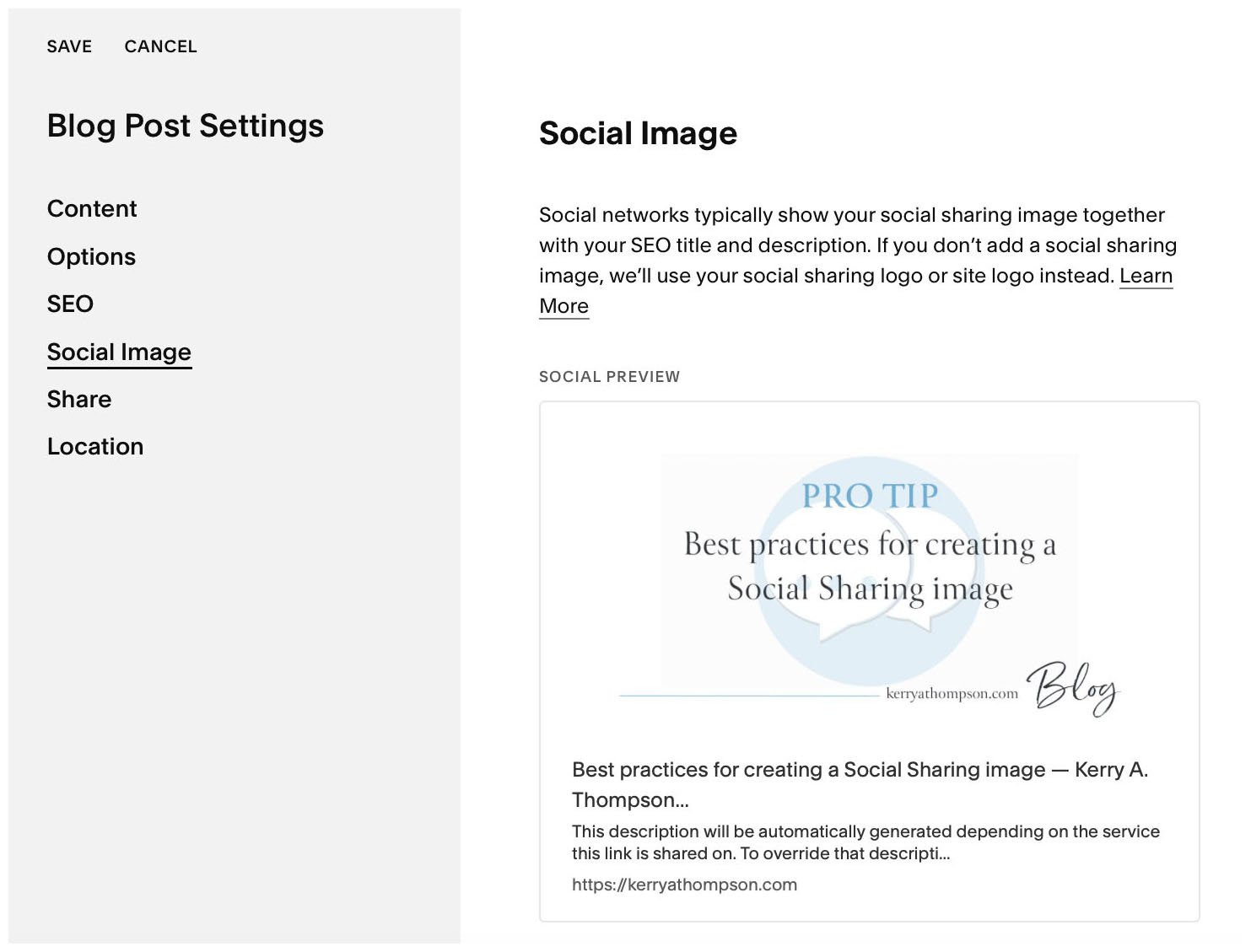
Being able to set a Social Sharing image for link previews for your whole website, individual pages, or individual blog posts gives you a lot of flexibility for social media promotions that draw attention to the web content you want your followers to read.
You can even swap out custom images as needed for specific promotions, seasons, or as your messaging or branding change over time. As with all changes on your website, Squarespace makes it easy to change to adjust your online presence as your business needs change.

Optimized photos load more quickly and improve SEO (search engine optimization) for your website, without sacrificing quality. Techniques for optimization include resizing and compressing the photo to reduce the file size while maintaining sharpness and clarity.

Whether your website is new or has been around a while, decluttering the content to encourage visitors to browse is always a good idea.

Whether you design your website on Squarespace or some other platform, you’ll be making color choices that are unified and compatible across your website, from the text to the buttons to the colors in the images. Designers call these color choices a color palette. Here’s how I simplify color selections for my clients.
To stretch and expand the background image to the top of your website, change the site header color style to Adaptive. The site header then becomes transparent so the background image shows behind the navigation text.

The clickable image that shows up on social media posts is called a link preview image. In Squarespace and other website editors, you can designate a specific image to show up when you share a website page on Facebook, LinkedIn, or Twitter/X.

The aspect ratio of an image is its width relative to its height. Understanding aspect ratio helps you design your pages with images that look attractive and well-matched. Aspect ratio choices can also help with planning and choosing images you’d like to use on your website.

You can add a Social Sharing image to Squarespace to be shown as a link preview for your website when you share a URL on Facebook, LinkedIn, and Twitter. The size of 1200x628 pixels works best for those platforms. You can also set custom images for specific website pages or blog posts to draw extra attention to them.

Squarespace lets you promote your blog post automatically on your connected social media accounts through the Share settings for the post.

Taking the time to add a note to your invitation to connect to someone on LinkedIn improves the chances of the invitation being accepted. Adding information about how you know the person or mutual connections you have builds trust.

Use the Facebook Like Button Configurator to generate code to add a Facebook Follow button on your website.

As you start a blog, first determine the focus of your blog. Then choose topics that are relevant and that are in your area of expertise. Blog posts can contain text, images, videos, links to other blog posts, links to podcasts, and personal or creative endeavors. Each blog post adds content to your website and gives you cumulative client-attracting and SEO benefits.

High-quality images are an important part of any online message you want to deliver. Free images that you can use on your website and with social media postings must either be your own originals, those that you have permission to use, or donated by artists to use free for commercial use. In addition to Pixabay, I've also discovered Unsplash as another place to find beautiful images that are free to use for commercial use.

Choosing the main image on the home page of your website has repercussions for the colors, mood, and typeface choices for your whole website. Designers take a lot of things into consideration, including colors, size, and arrangement before choosing what's called a "hero image."

Save yourself some time by keeping these tips in mind when you are selecting a large banner photo for the top of your website page. These guidelines apply both to selecting a photo from a stock photo site or if you plan on using photographs of yourself in banner photos as many service-oriented business owners do.

If you have a website that will show personal photos, you’ll want to remove location information from those photos, especially from any photos taken at your home or other places that you don’t want to share with the public.

Whether you want to add a little emphasis or a bit of lightheartedness to your website, emojis give you another choice for adding a graphic touch that stands out.

After reading an article about self-employment time management, I started keeping a log of how I was spending my time on marketing and educational activities related to my website design business. Now I am much more deliberate about how I spend my time online and I've narrowed down my business-related social media focus to a few platforms.